This tutorial will explain how to use your soundcard to play music directly into a chat room.
Please Note: There are many different soundcards and the settings are slightly different for each of them. For this tutorial, I have chosen perhaps the most common soundcard available, SoundBlaster Live! First, click on Start, then Control Panel, and find the speaker icon.
Click the speaker icon and open up the Play Control panel. It will look something like this. 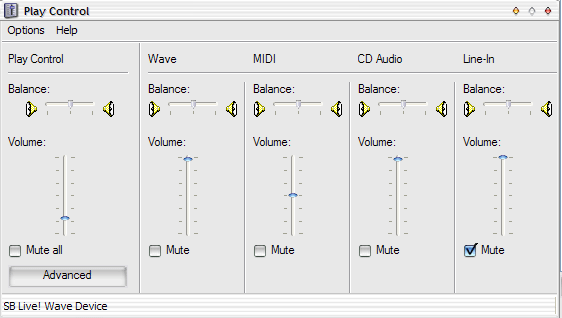
Figure 1 Next, you will need to click on Options on the menu and select Properties as displayed below in Figure 2. 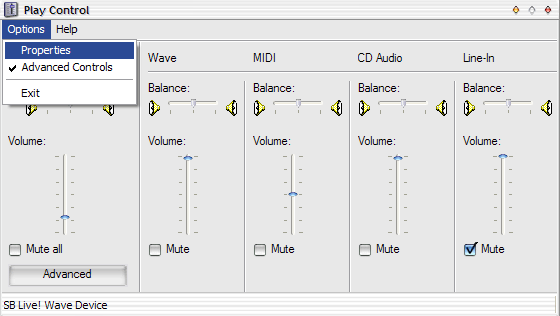
Figure 2 Next you will want to select the radio button labeled "Recording".
Below that button you will see a box which allows you to select various output devices on your soundcard.
All soundcards are different but all things considered, you will need to select your master output device and the mic.
These are the only two items you need checked in order to play direct on Yahoo! Messenger.
Below you will see that I have checked Record Master and Microphone.
While all soundcards have a Microphone selection, your particular soundcard may have not have a Record Master setting but will list instead, Stereo Out, Mixer Out, Master Out, Wav Out etc. 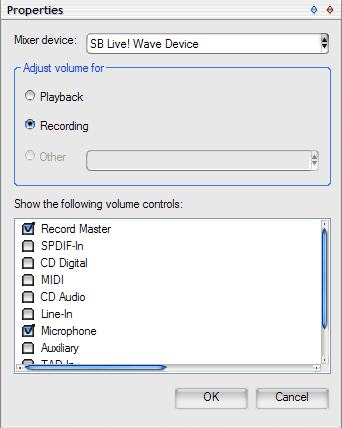
Figure 3 After choosing the proper devices select OK.
The Record Control panel will appear with only your main output control and mic visible.
Set your main output level somewhere between the 3rd and 4th notch as a general rule as indicated in Figure 4. 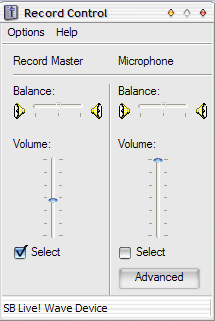
Figure 4 When you wish to play music in the chat room, select your output control.
When you wish to speak on the mic, select your Microphone control. Do not close the Record Panel. Allow it to reside on your taskbar as indicated in Figure 5.
This will allow you to switch back and forth between devices easily. 
Figure 5 To send music to the chat room, select the master output control, queue up your music and start playing. Hold down the talk button in the chat room window as indicated in Figure 6 and you are now playing direct.
DO NOT use Hands Free in yahoo chat rooms, but it should work in paltalk. Hands Free does not work with music in the yahoo chat rooms.
There are various mic locking programs available if you wish to save wear and tear on your fingers. This tutorial will not explain their use as they are fairly straightforward. 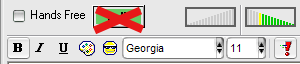
Figure 6 If you need a mic locking program, there are various different ones on my miclocks page here. This concludes the tutorial. You should now be able to produce much better sound in the chat room if you are listening at very low volumes or even muted if you'd like to answer the phone or type or talk to someone else etc.
| 